AI within reach
Open your compact AI workspace with a shortcut and switch between providers.
Loading
 Nesh AI
Your Windows AI workspace
Prepare for interviews, explore ideas, and bring text, screenshots, or meeting audio into your AI conversations. Nesh AI keeps your chosen providers close in a compact Windows app, with quick capture and shortcuts you control.
Download for WindowsVersion 1.2.0 | Windows 64-bit
Open your compact AI workspace with a shortcut and switch between providers.
Insert selected text or preview a screenshot before adding it to your AI message.
Choose system audio, microphone, or both when starting the AI provider's voice input.
New to Nesh? Create your account, confirm your email, and use it in the desktop app. AI providers may require their own sign-in.
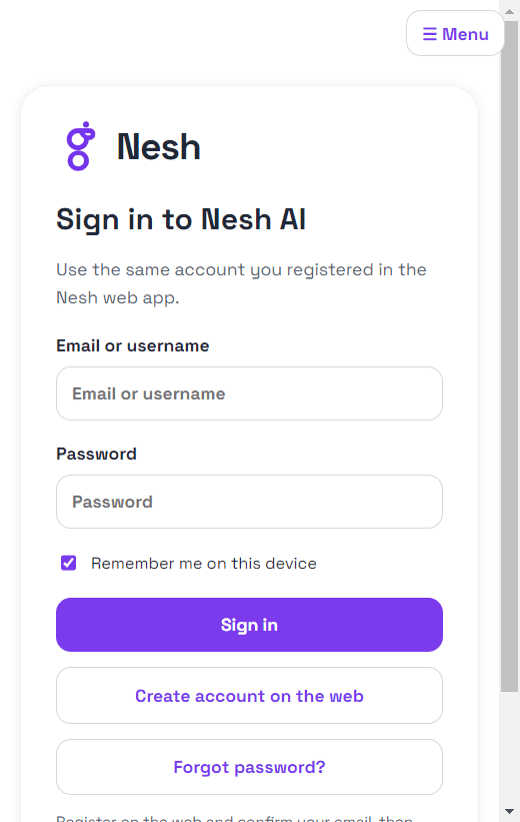
Sign in with your Nesh account and open the on-screen Menu for subscription details, shortcut settings, and app controls.
When you are reading a difficult problem, preparing an answer, or working through a discussion, moving between windows can interrupt your train of thought. Nesh AI gives you a compact workspace you can bring forward with a shortcut, use alongside your work, and hide when you are done.
Capture the text you want to discuss, preview a screenshot, or choose the audio source for a voice conversation. Your selected AI provider handles the response; Nesh AI makes it easier to bring the right context to that conversation.
Start with a clear question and the material you already have. These examples show how to turn the app controls into a useful workflow.
Turn a job description into a focused practice session. Ask your AI provider to interview you one question at a time, challenge unclear answers, and help you explain your experience with confidence.
Try this prompt
Act as an interviewer for this role. Ask one question at a time, then give me specific feedback on my answer.
Bring a practice problem, code snippet, or system diagram into the conversation. Discuss complexity, find edge cases, and practice explaining why you chose one approach over another.
Try this prompt
Review this solution. What edge cases have I missed, and how can I explain the tradeoffs clearly?
Prepare an introduction, refine your resume, or organize a project story. Use your actual achievements as the starting point and ask for help making the structure and wording clearer.
Try this prompt
Help me turn these project notes into a concise interview answer. Ask for missing details instead of inventing them.
Select system audio when you want your provider's voice input to hear Windows playback, even while you wear earphones. Choose system audio plus microphone when your own voice should be included too.
Try this prompt
From these meeting notes, identify the decisions, unresolved questions, and next steps. Keep uncertain details marked as uncertain.
Capture a paragraph, question, or screenshot and explore it with AI. Ask for a plain-language explanation, a worked example, or questions that check whether you understood the idea.
Try this prompt
Explain this in simple language, give one example, and ask me a follow-up question to test my understanding.
Draft a thoughtful reply, outline a document, or explore a project idea without losing your place in your work. Switch providers when you want another perspective on the same task.
Try this prompt
Rewrite this message so the context, request, and next step are clear. Keep it brief and professional.
Nesh AI is a Windows desktop workspace that brings AI provider websites, quick capture, audio-input controls, and keyboard shortcuts into one compact app. The answers come from the provider you choose.
Choose ChatGPT, Gemini, Claude, Grok, Perplexity, or Copilot from the provider selector. Their sign-in requirements, features, subscriptions, and usage limits apply separately.
Eligible first-time accounts can redeem a free 10-day trial from My subscription. Visit the pricing page for the current paid plan and renewal duration.
No. Review the screenshot first, then insert it into the AI composer, copy it, or cancel. You decide when to send your message.
System-audio mode captures Windows playback directly. Choose the audio source before starting your provider's voice input, and restart voice input after changing modes. Test your provider and audio setup before relying on it.
It can support workflows where AI assistance is allowed. Check the interviewer's rules first. For preparation, use mock interviews, coding explanations, and feedback on your own answers. Response speed depends on the provider and connection.
There is no guarantee of invisibility or undetectability. Some windows use Windows capture protection, but results depend on the capture method. Nesh AI does not promise to bypass assessment controls.
Open Menu in the desktop app for My subscription, Shortcut settings, capture controls, audio sources, and window options. After activating or renewing on the web, refresh your desktop subscription to update access.
Review the current plan, activate your access, and see how the desktop workspace fits your next practice session or project.